
The Testuff-Jira App is designed to provide project managers using Jira with seamless access to relevant information from Testuff directly within Jira. With this app, there’s no need to maintain an active login to Testuff while working in Jira. Simply select the Testuff project you want to monitor on the app dashboard, and instantly access real-time data, including Requirement coverage, Lab execution summaries, and defect reports from Testuff.
Additionally, the app automatically syncs data between Testuff and Jira, such as defect information to Jira issues and Requirement coverage to Jira Stories. This integration streamlines your workflow, making it more efficient and saving you valuable time, aligning with Testuff’s mission to enhance your productivity.
Precondition
To view your Testuff dashboard directly in Jira and keep track of your testing projects, no preconditions are necessary on the Testuff side. Just follow the app setup instructions below.
If you wish to access detailed defect reports and lists of tests linked to user stories, ensure that your Testuff account is integrated with your Jira account before setting up the Testuff-Jira App. You can find setup instructions for this integration here.
How to configure Testuff-Jira App
1.Install the App:
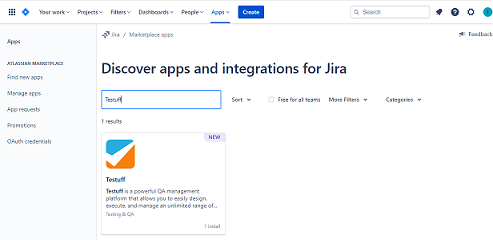
- In your Jira account, under Apps->Explore more apps, search for “Testuff”.
- Click on the search result, then the ‘Get app’ link at the top right.
2. Configure the App:
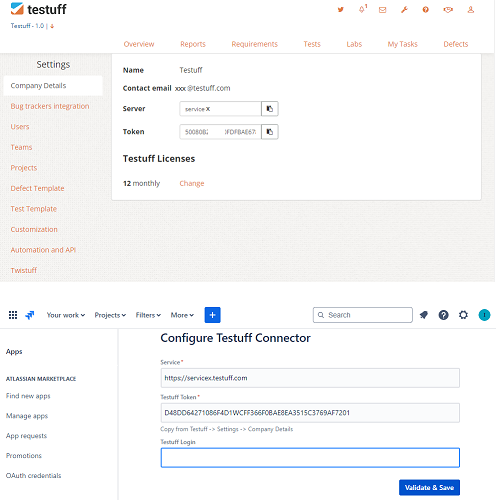
- Go to Apps->Manage apps to configure the connector’s details.
- You can find the necessary configuration details in Testuff under Settings->Company details.
Using Testuff-Jira App
Once configured, the Testuff-Jira App is ready for use:
- Accessing Defect and Test Information:
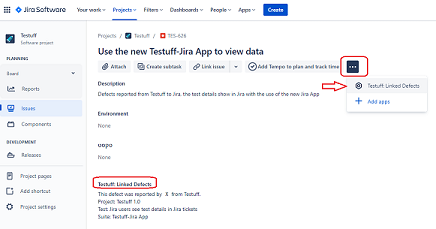
- In any Jira ticket, click the 3-dots menu and select Testuff App.
- For defects reported from Testuff, you can view detailed defect and test information.
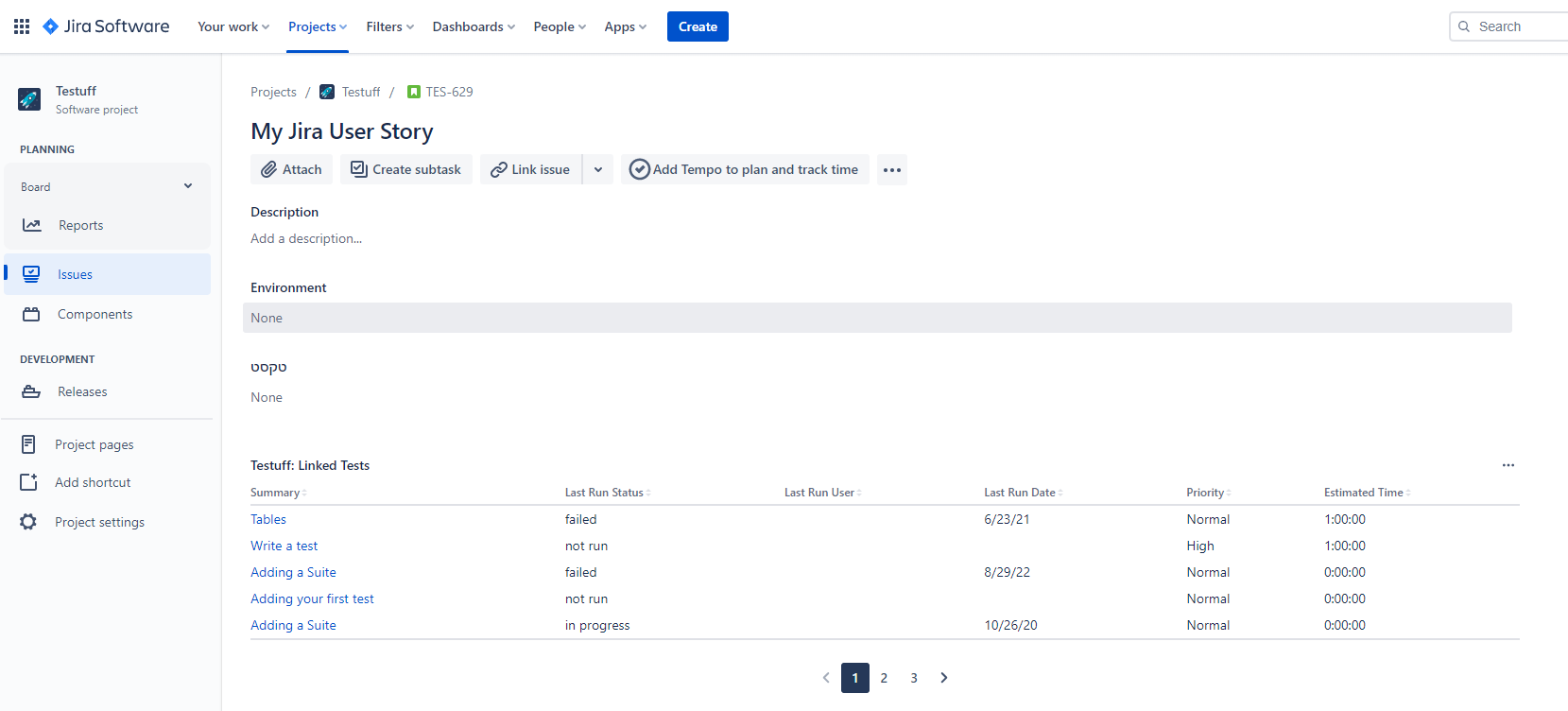
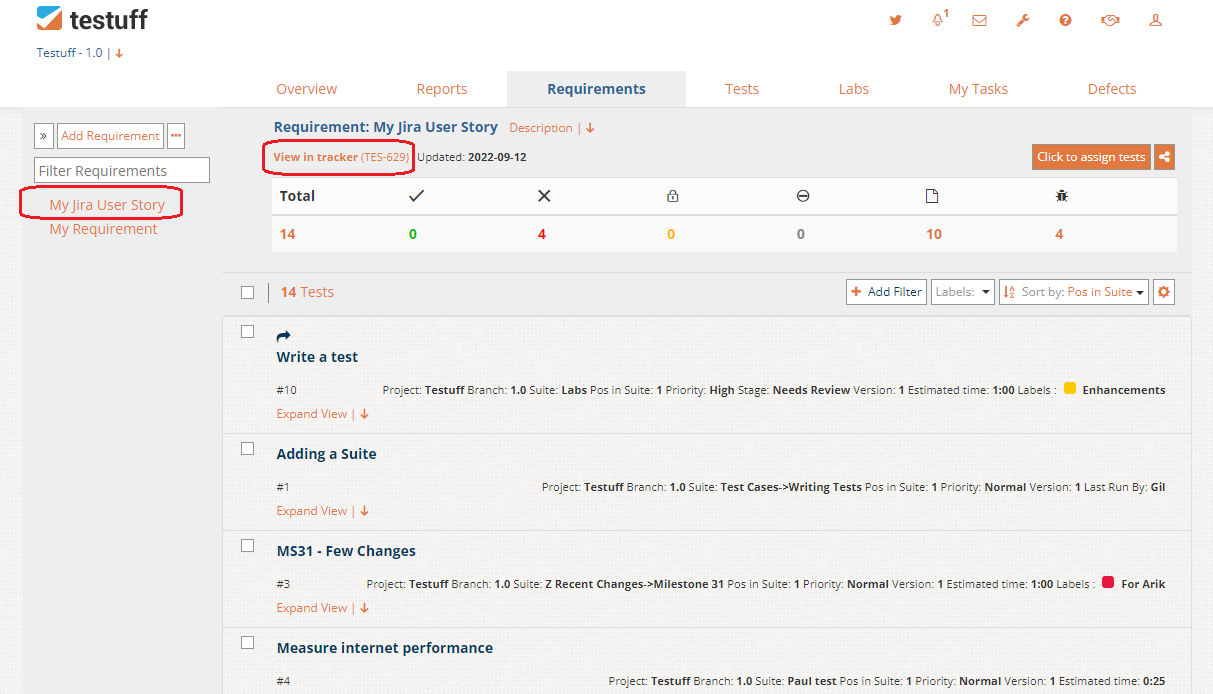
- Viewing Stories and Test Assignments: For Jira Stories linked with Testuff requirements, you can see a list of tests assigned to these requirements
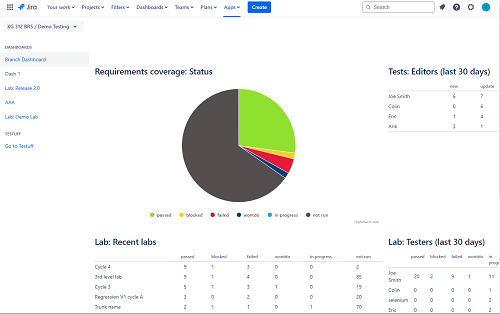
- Monitoring Your Testuff Dashboard: Access the Testuff Overview dashboard in Jira by navigating to Apps -> Testuff -> Overview. From here, you can monitor your testing progress directly within Jira.
Defect example:
User Story example:
Dashboard example:
Testuff Panels in Jira Issues
When using the Testuff Jira App, several panels appear within a Jira issue, displaying relevant testing data from Testuff. These panels provide better traceability and insight into the testing process related to the issue.
- For issues linked to a Testuff Requirement:
- Test Results Grouped by Labs: Displays test results categorized by labs, showing which tests have been executed for the issue and their outcomes.
- Linked Tests from Requirement: Lists tests associated with the requirement linked to the Jira issue, ensuring all relevant tests are included in the development and validation process.
- For issues linked to a Testuff Lab:
- Lab Summary: Provides an overview of testing progress within different labs, including execution status and key performance metrics.
- Linked Tests from Lab: Lists tests from the associated Testuff lab, helping track test coverage and execution details.
- For issues linked to a Testuff Defect:
- Linked Defects: Displays defects from Testuff that are linked to the Jira issue, allowing quick access to reported issues related to the specific requirement or development task.
* In the Labs screen of Testuff, you can associate a lab with a Jira issue to reflect the lab’s status within the issue view.
These panels offer a direct view of your testing data, enhancing visibility and simplifying the management of development and testing relationships.
Notes:
- Project Availability: The list of available Testuff projects/branches in the App corresponds to the Testuff projects you have integrated with Jira.
- Desktop Client Note: Configuration steps and app functionality are consistent across both the web and desktop clients.
For any assistance with using the Testuff-Jira App, please contact our support team