
How to Integrate Testuff with Email?
Testuff supports defect reporting even if you choose not to work with a bug tracker. To keep track of defects, Testuff can automatically send them by email, allowing you to export bugs to selected email addresses. Additionally, you can utilize the Defects module within Testuff itself.
How to Configure Email Integration in Testuff
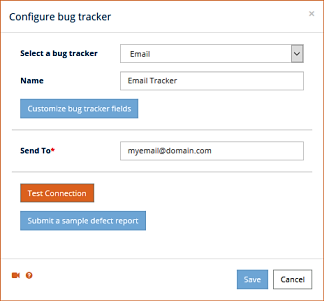
- In Testuff, go to Settings > Bug Tracker and select Add bug tracker.
- Choose Email from the bug trackers combo box.
- Enter the desired email address (or addresses, separated by commas) in the Send to field where defect reports should be sent.
- Optionally, click the Submit a Sample link to ensure Testuff sends bug reports to the relevant email address. If successful, a new bug report should appear in your inbox.
- Don’t forget to click SAVE (or OK in the Desktop client) to register your settings.
Sending Defect Reports to a Different Email Address
There are two ways to send defect reports to different email addresses:
- Project-Specific Email: Set an email address at the project level. Defects from this project will be sent to this address instead of the default address set in the tracker’s settings. To configure this, go to Projects (accessible from Settings or the home screen in the desktop client), click Edit next to the project name, and enter the email address.
- CC Field: Add a CC field to the bug reporter, which allows you to send each defect to an additional address of your choice. To do this, click the Customize Bug Tracker Fields button in the bug tracker settings window and add the CC field.
Adding Custom Fields to the Defect Report
You can add other fields to the defect report as follows:
- In the Bug Tracker Settings window, click the Customize Bug Tracker Fields button.
- Click Add Custom Field and enter a name for the field. The code field can be left empty.
- Choose a default value and decide whether to show this field in the bug reporter.
For any additional help or questions regarding the integration between Testuff and your email, please contact our support team.