
 Planbox Website
 Planbox Website
How Does Testuff Integrate with Planbox?
Testuff integrates seamlessly with Planbox, allowing automatic reporting of defects from Testuff to your Planbox account. You can run your manual tests with Testuff and use Planbox for defect tracking without any extra configuration or firewall adjustments.
How to Configure Planbox with Testuff?
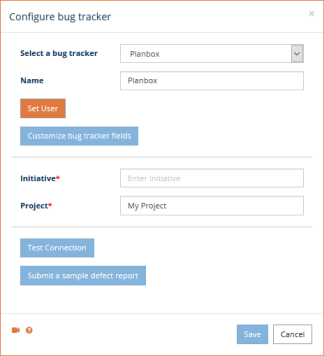
- In Testuff, go to Settings and select the Bug Tracker menu option. Click the Add Bug Tracker link.
- Select Planbox from the dropdown menu in the Select a Bug Tracker field.
- Set the default Initiative. Defects exported from Testuff projects without a custom Planbox initiative will use this default initiative name.
- Click Submit a sample defect report to verify the connection. A successful test will display the new bug report in Planbox.
- Click Save to apply the settings.
Can I Associate a Custom Planbox Initiative and Project to a Testuff Project?
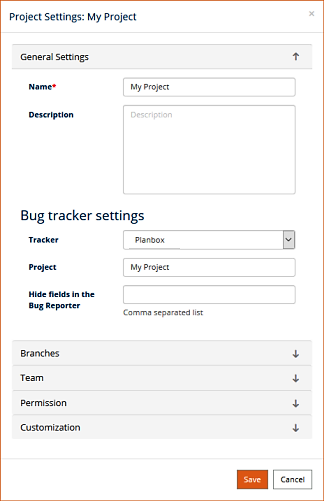
Yes, you can. Follow these steps to associate a specific Testuff project with a custom Planbox initiative and project:
- In Testuff, go to Settings and click on Projects.
- Select a project by clicking the Edit link next to it.
- Under the General Settings section, set the Tracker field to Planbox, and enter the respective Planbox project and initiative names for the Testuff project.
- Click Save to apply your changes.
Can I Add My Labels to the Bug Report?
Yes, you can add labels to your bug reports. Here’s how:
- Click on the Customize Bug Tracker Fields button.
- Click the Edit link next to Labels and enter your desired labels (separated by commas) in the Manage Bug Tracker Fields window.
For any assistance, please contact us for help with integrating Testuff and Planbox.