
 Rally Website
 Rally Website
How does Testuff integrate with Rally?
Testuff, though a hosted service, can automatically send every reported defect to your Rally account. You can run your manual tests with Testuff while continuing to use Rally for bug tracking.
How do I configure Rally with Testuff?
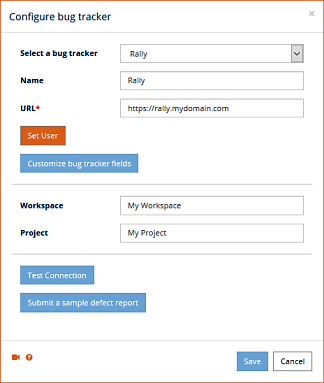
- In Testuff, go to Settings and select the Bug Trackers menu option. The Bug trackers integration page will display. Click the Add bug tracker link.
- Choose Rally from the bug trackers combo box.
- Fill in the Rally server address in the URL field (omit any file names after the last slash).
- You can set a default Workspace, though this step is not mandatory.
- Set the default Project for defects exported from Testuff projects that do not have a custom Rally project.
- Click the Submit a sample defect report button to ensure Testuff can create bug reports in Rally. If successful, the new bug report should be displayed.
- Don’t forget to click the Save button to register the settings.
How do I add my custom fields?
- In Rally, go to Setup > Workspace & Projects > Work products & Fields.
- In Testuff, click the Customize bug tracker fields button. When the Manage bug tracker fields window pops up, click Add custom field and enter the custom field name exactly as it appears in Rally.
- Ensure the exact name is used in the code field in Testuff.
How do I edit my predefined fields?
- Click the Add custom field link.
- Choose a field from the predefined fields list to edit.
- Add Default Value/s to it and decide whether to show it in the bug reporter.
- For best results, use the Get field values from tracker link.
Can I associate a custom Rally project to a Testuff project?
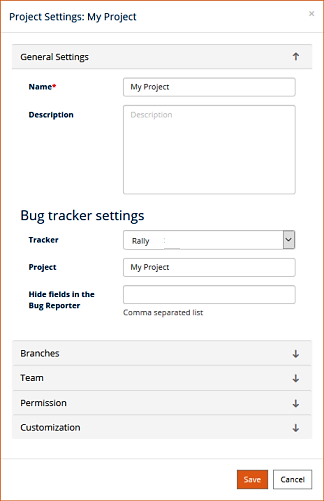
Yes. If you wish to export defects from a certain Testuff project to a certain Rally project, follow these steps:
- In Testuff, go to Settings > Projects and select a project by clicking the Edit link next to it.
- Under the General Settings section, set the Tracker field to Rally and fill in the Rally Workspace and Project for this Testuff project.
- Click the Save button to register the new settings.
Importing defects or requirements from Rally
You can import Rally tickets to defects or requirements screens in Testuff by using an ID, a list of IDs, or by importing a saved Rally view.
- Set the view in Rally.
- Copy the part in parentheses from the view’s description (found below the view names dropdown).
- Right-click the defects screen or the more link on the Requirements screen in Testuff, and select Add from Rally.
- Paste the description into the Testuff dialog window. Add US as a prefix for User Stories or DE for defects (e.g., US(Description contains abc)).
- Hit Add, then Done to finish the import process.
Please contact us for any help integrating Testuff with your Rally.