
 ServiceDesk Plus Website
 ServiceDesk Plus Website
How Does Testuff Integrate with ServiceDesk Plus?
Testuff can automatically send every reported defect to your ServiceDesk Plus account, allowing you to continue using ServiceDesk Plus for bug tracking while managing your manual tests in Testuff.
Configuring ServiceDesk Plus with Testuff
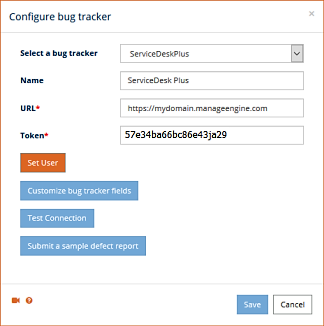
- Open Settings in Testuff and select Bug Trackers.
- Click the Add bug tracker link.
- From the dropdown, select ServiceDesk Plus.
- In the URL field, enter your ServiceDesk Plus server address, omitting any file names after the last slash.
- Enter the ServiceDesk Plus Token found under your Zoho account’s Active Authtokens.
- To verify the setup, click Submit a sample defect report (web client) or Submit sample (desktop client). A new bug report should appear in ServiceDesk Plus if the configuration is correct.
- Click Save (web client) or OK (desktop client) to store the settings.
Setting Default Values for ServiceDesk Plus Fields
- In Testuff, click Customize bug tracker fields.
- In the Manage bug tracker fields window, click Add custom field to enter the Name and Code of each required customized ServiceDesk Plus field.
- Add values manually or use the Show available custom fields (web client) or Get field values from tracker (desktop client) to auto-populate the fields.
Associating a Custom ServiceDesk Plus Project with a Testuff Project
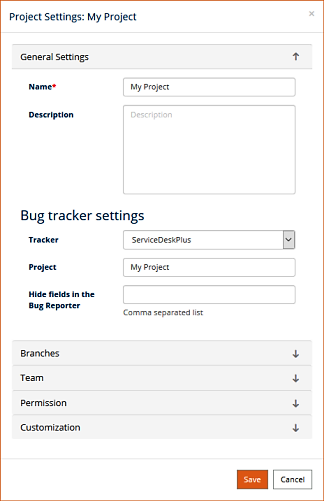
To associate a specific Testuff project with a particular ServiceDesk Plus project:
- Go to Settings in Testuff.
- Click on Projects and select a project by clicking Edit next to it.
- In the General Settings section (web client) or under the General tab (desktop client), ensure the Tracker field is set to ServiceDesk Plus and enter the corresponding ServiceDesk Plus project for the Testuff project.
- Click Save (web client) or OK (desktop client) to apply the settings.
Integrating ServiceDesk Plus Requirements with Testuff
To integrate ServiceDesk Plus requirements with Testuff:
- Go to the Testuff project settings and select ServiceDesk Plus as the requirement tool.
- From the Requirements screen, click on the More link at the bottom.
- Select Add from ServiceDesk Plus from the menu.
- Enter a ServiceDesk Plus incident ID or multiple IDs separated by commas.
For any further assistance with integrating Testuff with ServiceDesk Plus, please contact our support team.