
 VersionOne Website
 VersionOne Website
How Does Testuff Integrate with VersionOne?
Testuff can automatically send every reported defect to your VersionOne account, enabling you to run manual tests in Testuff while continuing to use VersionOne for bug tracking. If you’re hosting VersionOne on an internal server, no additional security configurations are needed, as Testuff does not require direct access to your bug tracker server.
How to Configure VersionOne with Testuff

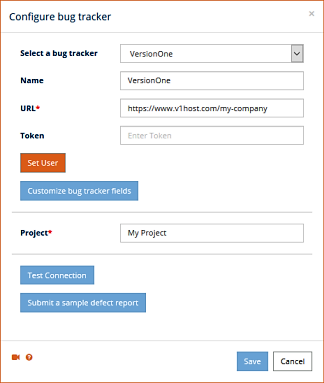
- Go to Settings in Testuff and select the Bug Trackers option.
- Click the Add bug tracker link.
- Select VersionOne from the list of available bug trackers.
- Enter the VersionOne server address in the URL field.
- Input your Token or VersionOne username/password under Set User.
- Set the default Project. This project will be used for defects from Testuff projects without a custom VersionOne project set.
- Click the Submit a sample defect report button to ensure the integration is working. If successful, a new bug report will appear in VersionOne.
- Click Save to save your settings.
Associating a Custom VersionOne Project with a Testuff Project

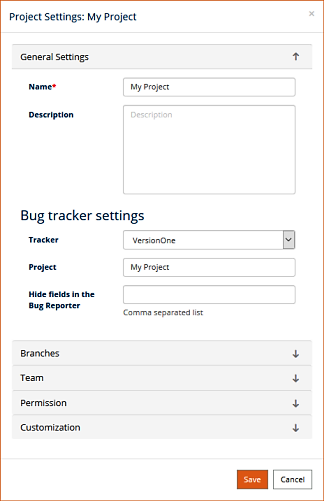
To export defects from a specific Testuff project to a specific VersionOne project, follow these steps:
- In the web client, go to the Settings menu. For the desktop client, access the home screen via the house icon and click Manage projects.
- Under General Settings (web client) or the General tab (desktop client), ensure Tracker is set to VersionOne.
- Enter the appropriate VersionOne project for this Testuff project.
- Click Save (web client) or OK (desktop client) to finalize.
Integrating VersionOne Requirements with Testuff
- Go to the Testuff project settings and select VersionOne as the requirement tool.
- From the Requirements screen, click the more link.
- Select Add from VersionOne and input the VersionOne ID(s). Multiple IDs can be separated by commas.
For any further assistance, please contact us and we’ll be happy to help.