
Teams can be used for effective control of testers within a project.
It enables you to link only the relevant testers to a lab and helps you assign tests.
How to create Project Teams
You can create teams of testers and assign them to specific projects.
-
- Go to Settings, and to the Teams tab.
- Click the Create Team button to create a new team
- Assign testers to each team by clicking the Edit link next to the team name. You can select the testers you want to include in the team and save your selection.
- You can also assign testers to teams from the Manage Testers window by clicking the Edit link next to a tester’s name and selecting the teams they should be part of.
Desktop Client Note: In the desktop client, you access this feature from the home screen by clicking on the Manage Teams link.
- Assign Teams to Projects:
- Go to the Projects tab.
- Select the project to which you want to assign testers and click on Edit.
- In the Team section, click the Assign… link. You can now assign teams or individual testers to the project.
Desktop Client Note: In the desktop client, this feature is accessed via the Manage Projects link (home screen).
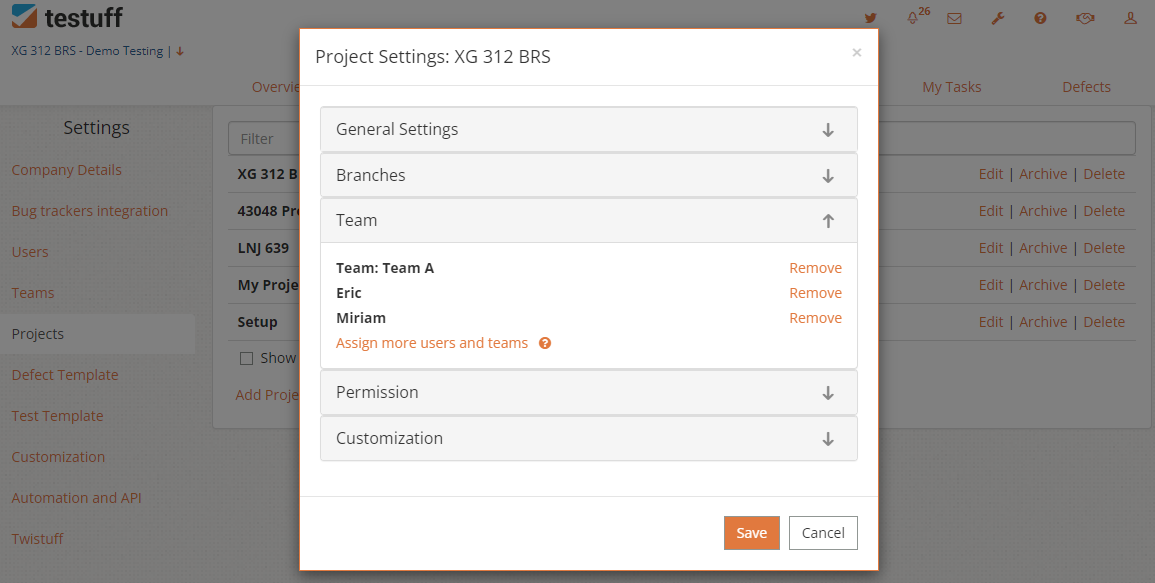
Can I change my team selection during the project?
Yes, you can change your team selection at any time during the project. Follow the steps mentioned above to add or remove teams and testers. In the Team section, the link that previously read Assign… will now read Assign More Users and Teams. You can use this to adjust the team composition for the project.
 We’ve made sure no data of a removed tester is lost.
Can a tester be on more than one project?
Absolutely. Testers can be assigned to any number of projects, either directly or as part of a team.
What about the tester’s rights?
A tester can have different roles in different projects. For example, they might be an admin in one project, a QA Lead in another, or simply a test writer in a third. You can override their account-level rights for each project. To do this, check the Project’s Settings window under the Permissions section.