
 Watch Tutorial
What are test labs?
Test labs allow you to organize and manage your test cycles effectively. The QA lead, or manager, sets up a new test lab, selects the relevant tests, and assigns them to testers. Testers then execute these tests, and the lead can monitor the status, including which tests have passed, failed, are still in progress, or have not yet been executed. Time Management tools help plan and track test execution across the team.
Setting Up a Lab
Create Lab
- Go to the Labs screen.
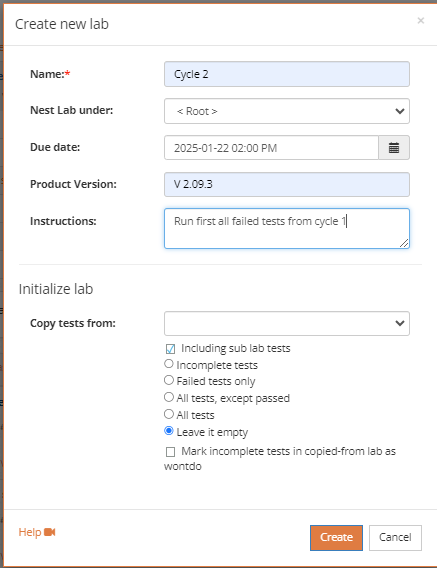
- Click the Add Lab button. The Create New Lab popup window will display.
- Enter a lab Name. It’s mandatory. You can also enter a Due Date, Product Version and specific Instructions.
- In the Initialize lab section, if there are previous Labs, you can choose to automatically add tests from another lab and sub lab, with the following options:
- Incomplete tests
- Failed tests only
- All test, except those that have passed.
- All tests
This feature is useful for rerunning tests in different cycles or when you need to retest failed or incomplete tests.
- Click on the Create button.
* Note: A lab can also be created directly from a suite in the Tests screen, where you can assign the suite’s tests to the lab.
Assign Tests
- Once the Lab is created, you can proceed to assigning tests to it. Click on the button Click to assign tests and Assign tests to the lab popup window will be displayed. It displays all tests of the branch repository. You can use the Filters to narrow down the tests list by Suite, Priority, Category, Status, Stage, a Requirement or even by the test summary.
- Select the tests you wish to assign. Verify that the Assign button displays the number of selected tests to be assigned.
- You can assign the the tests to specific users (testers), and include the configuration details. Testers with assigned tasks will see them on their My Tasks screen.

Desktop Client Note: In the desktop version, you can assign tests via drag and drop or by right-clicking on a test to select a tester.
Checking Lab Status
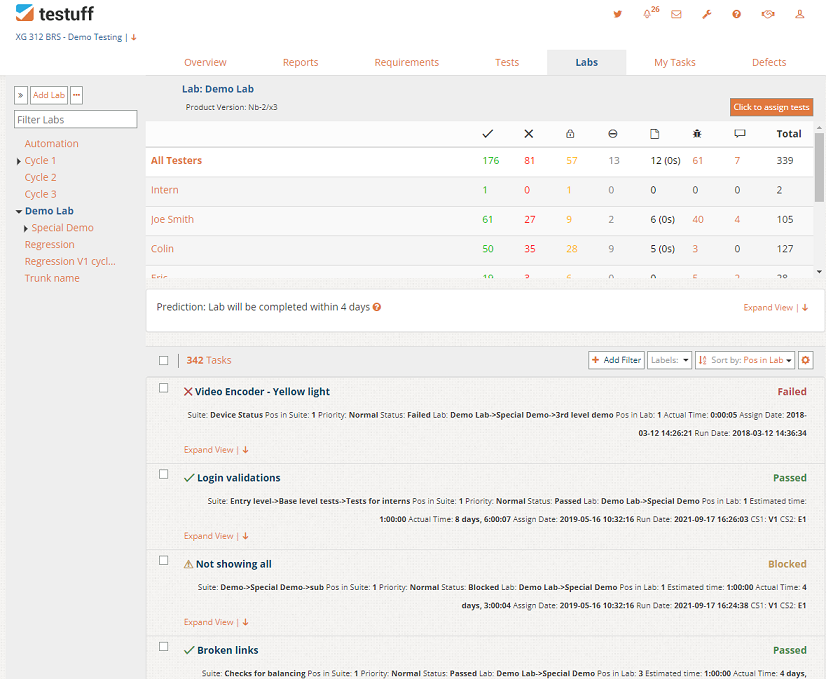
- The Labs page provides an overview of all test statuses and the number of tests run by each tester.
- You can export the lab status to Excel by selecting the tests at the top of the list and clicking on Operate on all and choosing Export to Excel. Use the Operate on all # link to select the Export to Excel menu option.
How do I know when will my lab be completed?
Making the decision when is a lab completed is yours, and depends on your rules, methodology and definitions. Testuff provides tools to estimate the remaining time for test execution and predict how many days are left to complete the lab. on how many days are left to complete this work. Read more about prediction here.
Printing Tests in a Lab
To print tests select the desired test. Open the menu and select Print. You can also print all tests, from the lab’s menu or a selected group of tests, from the Operate on all option.
Desktop Client Note: In the desktop version, right-click on a lab and choose Print. You can print by test status (by testers or suites) or print all lab defects.