
 Visual Studio Website
 Visual Studio Website
How Does Testuff Integrate with TFS?
Testuff seamlessly integrates with your TFS (Team Foundation Server) to ensure smooth synchronization between Testuff client and your TFS server. This integration is powered by a specialized component developed in collaboration with a Microsoft Gold Certified Partner, enabling efficient defect management and tracking.
 Note: Integration with TFS is currently available from the desktop-client only
How Do I Configure TFS with Testuff?
- Download the Synchronizer:
- Download the Synchronizer and save it on your TFS server.
- Install the Synchronizer:
- Follow the installation instructions provided.
- Add TFS as a Bug Tracker in Testuff:
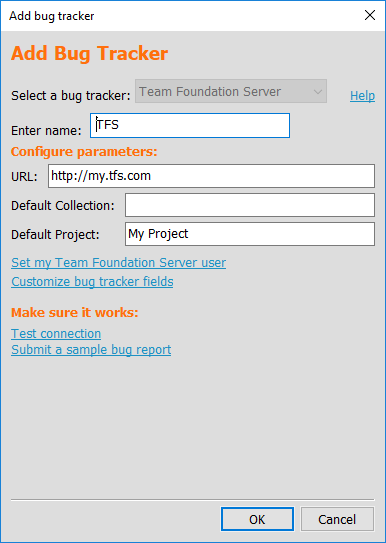
- In Testuff, navigate to Settings > Bug Tracker and click on the Add Bug Tracker link.
- Select TFS from the bug tracker dropdown menu.
- Configure the Synchronizer URL:
- Enter the synchronizer URL in the URL field using the following format:
http://[TFSServer:port]/TfsSynchronization/tfsservices/
- Enter the synchronizer URL in the URL field using the following format:
- Set Default Collection and Project:
- Specify the Default Collection and Default Project. Defects from Testuff projects without a custom Team System project will use this default project name.
- Test the Connection:
- Click Test Connection to verify the connection and enter your TFS credentials.
- Submit a Sample Defect:
- Use the Submit Sample link to ensure Testuff can create bug reports in TFS. A successful submission will display the new bug report.
- Save the Settings:
- Click OK to save your configurations.
Can I Associate a Custom TFS Project with a Testuff Project?
Yes, you can associate a specific Testuff project with a custom TFS project. If no custom project is set, the default one from the general settings will be used. Follow these steps to configure it:
- Access Project Settings:
- Navigate to the Home screen by clicking the house icon at the top left.
- Select Manage Projects and click the Edit link next to the desired project.
- Configure the TFS Project:
- Under the General tab, enter the specific TFS project name for this Testuff project.
- Save the Configuration:
- Click OK to save your changes.
For any assistance with integrating Testuff and TFS, please contact us.