
 Freshdesk Website
 Freshdesk Website
How to Integrate Testuff with Freshdesk
Testuff seamlessly integrates with Freshdesk, enabling you to automatically send every reported defect to your Freshdesk account. This allows you to continue running manual tests in Testuff while using Freshdesk for bug tracking.
Configuring Testuff for Freshdesk
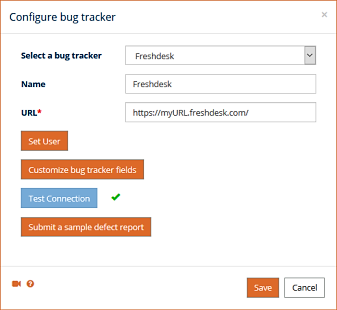
To configure the integration between Testuff and Freshdesk, follow these steps:
- Access Bug Tracker Settings:
- In Testuff, go to Settings and select Bug Trackers.
- Click the Add Bug Tracker link.
- Select Freshdesk:
- From the dropdown list, choose Freshdesk as your bug tracker.
- Enter your Freshdesk URL.
- Set User and API Key:
- Click Set User and enter the Requester Name.
- Retrieve your API Key from the Profile section in your Freshdesk account.
- Paste the API Key in Testuff.
- Click Test Connection to verify the integration.
- Submit a Sample:
- Optionally, click Submit Sample to verify that Testuff can create bug reports in Freshdesk.
- If successful, the new report will appear in Freshdesk.
Adding Custom Fields to Freshdesk Integration
To customize the defect report, follow these steps:
- Customize Bug Tracker Fields:
- In the Bug Tracker Settings window, click Customize Bug Tracker Fields.
- Click Show Available Custom Fields to choose fields or manually add them.
- Use the Get Field Values from Tracker Option: Click Get Field Values from Tracker to populate the fields automatically without manual input.
Associating a Custom Freshdesk Project with a Testuff Project
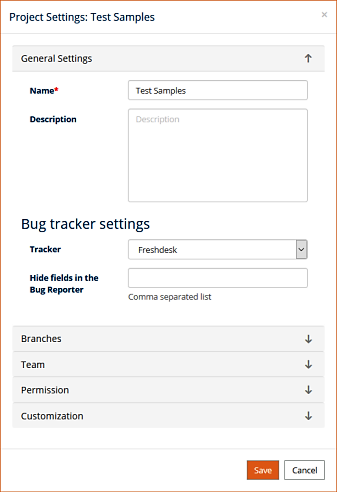
To link a specific Testuff project to a Freshdesk project, follow these steps:
- Select a Testuff Project:
- In Testuff, go to Settings and select Projects.
- Click Edit next to the relevant project.
- Configure the Bug Tracker:
- Under the General Settings section, set the Tracker field to Freshdesk.
- Enter the name of the Freshdesk project associated with this Testuff project.
- Save Your Settings: Click SAVE (or OK in the desktop client) to apply the changes.
Note for Desktop Client Users: The steps are similar but may require different navigation paths, such as accessing the “Manage Projects” link from the home screen.
For further assistance with the integration between Testuff and Freshdesk, please contact our support team.