
 Monday Website
 Monday Website
How Does Testuff Integrate with Monday?
Testuff seamlessly integrates with Monday, allowing you to automatically send every reported defect from Testuff to your Monday account. This integration enables you to manage bug tracking, project management, and other tasks in Monday while running your manual tests in Testuff.
How to Configure Monday with Testuff
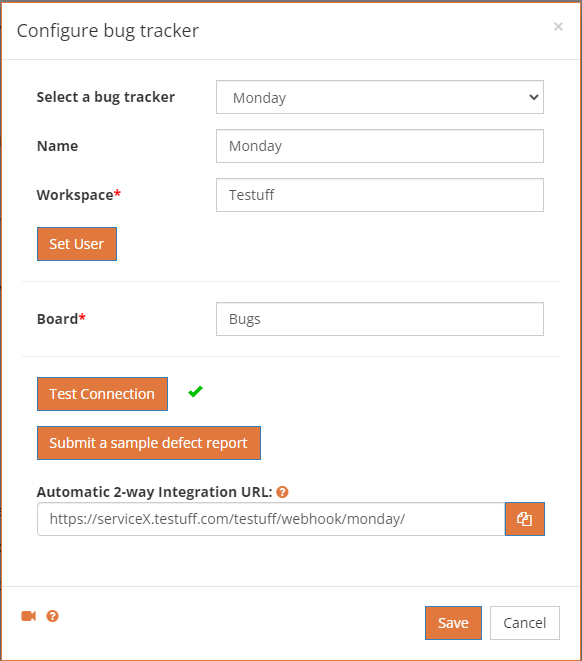
- Access the Bug Trackers Menu:
- Go to Settings and select the Bug Trackers option. The Bug Trackers Integration page will appear.
- Click the Add Bug Tracker link.
- Select Monday:
- Choose Monday from the Select a Bug Tracker dropdown menu.
- Set Default Workspace and Board:
- Set the default Workspace and Board. Defects exported from Testuff projects that do not have a custom Monday board specified will use this default board.
- Submit a Sample Defect Report:
- Click the Submit a Sample Defect Report link to verify that Testuff can create bug reports in Monday. If successful, the new bug report will be displayed in Monday.
- Save Settings:
- Click the Save button to apply the new settings.
Note: To find your Monday token (required for setting up the user), go to your Monday profile, click Developers, and then My Access Tokens from the left-side menu.
Setting Up Automatic Two-Way Integration
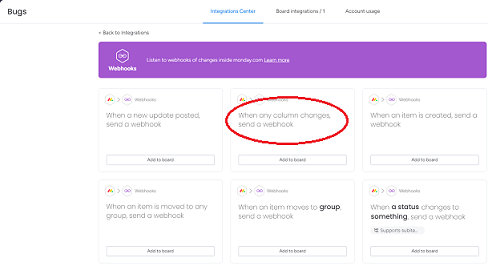
Testuff offers an industry-unique feature that automatically updates your reported defects in Testuff with any changes made to them in Monday. Follow these steps to enable this:
- Set Up Integration in Monday:
- In your Monday account, select a board and click Integrate on the top right side of the screen.
- Select Webhooks Integration:
- From the list of available integrations, choose Webhooks, then click on When any column changes, send a webhook.
- Enter the URL:
- In the URL field, enter the address found in Testuff under Settings > Bug Trackers > Monday (under Automatic Two-Way Integration URL).
- Finalize Setup:
- You’re now set to report defects from Testuff to your Monday account and receive automatic updates back.
Note: Only existing defects in Testuff will be updated when changes are made in Monday.
Associating a Custom Monday Board with a Testuff Project
If you want to export defects from a specific Testuff project to a specific Monday board, follow these steps:
- Go to Project Settings:
- In Testuff, go to Settings at the top of the screen.
- Click on Projects and select the project by clicking the Edit link next to it.
- Set Custom Board:
- Under the General Settings section, ensure the Tracker field is set to Monday and enter the desired Board for this Testuff project.
- Save Settings:
- Click the Save button to apply the new settings.
For any additional assistance with integrating Testuff and Monday, please contact our support team.