
 Pivotal Tracker Website
 Pivotal Tracker Website
How Does Testuff Integrate with Pivotal Tracker?
Testuff integrates seamlessly with Pivotal Tracker, allowing you to automatically send every reported defect directly to your Pivotal account. While running manual tests in Testuff, you can continue using Pivotal for bug tracking and project management.
How to Configure Pivotal Tracker with Testuff
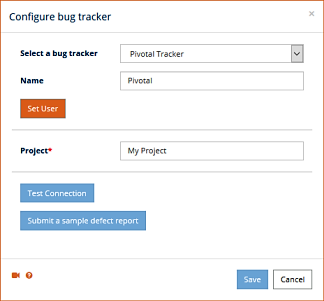
- Access Bug Tracker Settings: In Testuff, go to Settings and choose the Bug Trackers menu option. On the Bug Trackers Integration page, click the Add Bug Tracker link.
- Select Pivotal Tracker: Choose Pivotal from the dropdown menu of bug trackers.
- Set Default Project: Define the Default Project where defects from Testuff projects (without a specific Pivotal project assigned) will be sent.
- Set User Token: Click the Set User button to enter your Pivotal Tracker token.
- Test the Connection: Use the Test Connection button to verify that the setup is correctly configured and functional.
- Submit Sample Defect: Optionally, click the Submit a Sample Defect Report button to confirm that Testuff can successfully create bug reports in Pivotal.
- Save Settings: Click the Save button to apply and register the new settings.
Associating a Custom Pivotal Project to a Testuff Project
You can export defects from specific Testuff projects to particular Pivotal projects. Follow these steps:
- Access Project Settings: In Testuff, navigate to Settings and select the Projects option. Choose a project by clicking the Edit link next to it.
- Assign Pivotal Project: Under the General Settings section, set the Tracker field to Pivotal and enter the corresponding Pivotal project name for the selected Testuff project.
- Save Settings: Click the Save button to register the changes.
Adding Labels to Bug Reports
To customize your bug reports with labels, follow these instructions:
- Customize Bug Tracker Fields: Go to Settings > Bug Tracker > Pivotal, and click the Customize Bug Tracker Fields button.
- Edit Labels: Click the Edit link next to the Labels field, and enter the label(s) you want to use, separating multiple labels with commas.
- Display Labels: Ensure the labels field is visible in the bug reporter by enabling it during the configuration process.
For any additional assistance with integrating Testuff and Pivotal Tracker, please contact our support team.