
 Shortcut Website
 Shortcut Website
How Does Testuff Integrate with Shortcut?
Testuff can automatically send every reported defect to your Shortcut account, enabling you to continue using Shortcut for bug tracking while managing your manual tests in Testuff.
Configuring Testuff for Shortcut
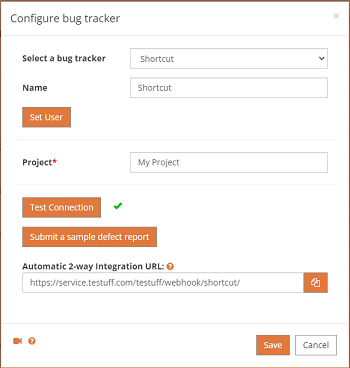
- In Testuff, go to Settings and select Bug Tracker.
- Click the Add bug tracker link.
- Choose Shortcut from the list of available bug trackers.
- Enter your Shortcut default Project.
- In your browser, log in to your Shortcut account.
- Navigate to Settings under your user profile and select API Tokens.
- Create a token specifically for Testuff integration.
- Copy the API Token and paste it into the Set My Shortcut User field in Testuff.
- Click Test Connection to verify the integration is working correctly.
Setting Up Automatic 2-Way Integration
Testuff offers a unique feature that allows you to automatically update your reported defects in Testuff with any changes made to them in Shortcut. To set this up:
- Go to your Shortcut account and select Integrations under your user profile.
- Find the Webhooks section and click it.
- Enter the URL found in Testuff under Settings > Bug trackers > Shortcut (labeled “Automatic 2-way Integration URL”).
- Create the webhook.
You’re now ready to report defects from Testuff to your Shortcut account and receive automatic updates back in Testuff.
Associating a Shortcut Project with a Testuff Project
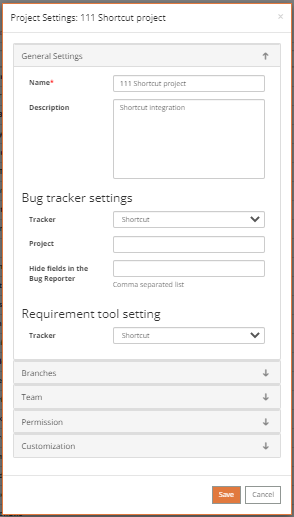
- Go to Settings and select the Projects menu option.
- Select a project by clicking on the Edit link next to it.
- In the General Settings section within Bug Tracker settings, choose Shortcut from the Tracker combo box to assign it to the Testuff project.
- Click Save to apply the settings.
For any further assistance with integrating Testuff with your Shortcut, please contact our support team.