
Test Stage
What are test stages?
Test stage is a field within a test that help you manage and track the progress of a test within the testing cycle. You can use test stages to add specific information about the test (for example pending approval / approved, needs to be automated / automated or any other stages your internal processes require).
Can I customize my test stages?
Yes, you can customize your test stages according to your project needs.
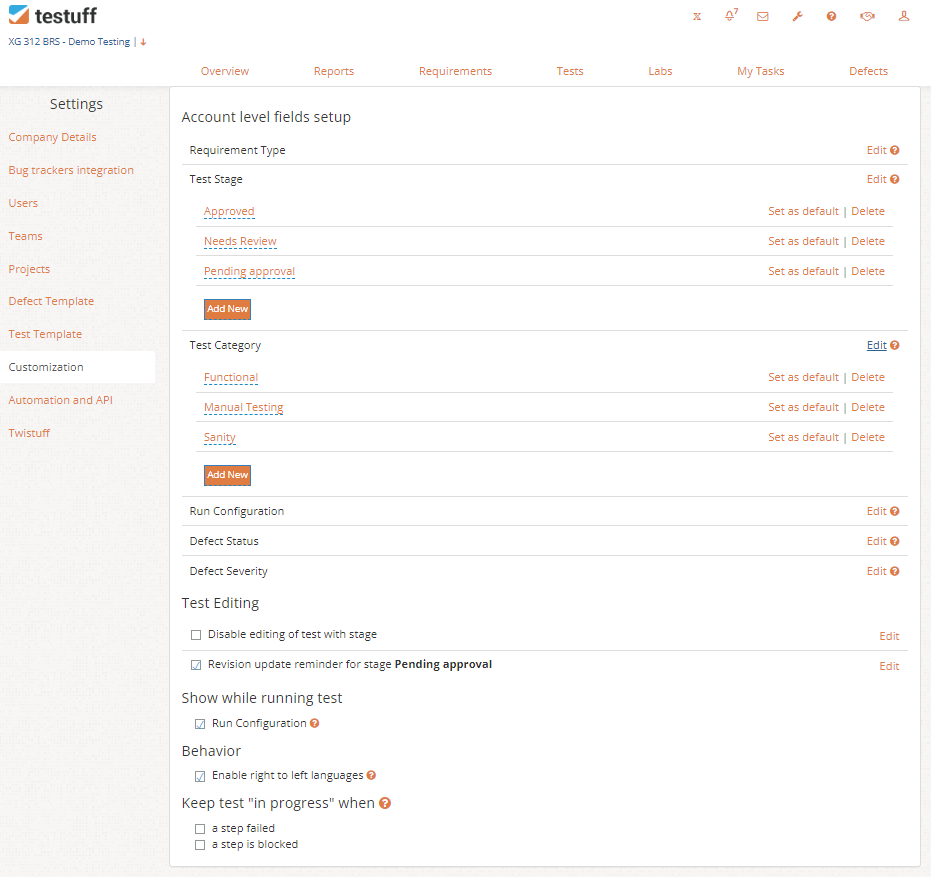
To do this, go to Settings, select the Customization menu option and click on the edit link, next to the Test Stage. Here, you can edit, delete or add a new test stage by clicking on the Add New link.
How can I further use my test stages?
You can leverage specific test stages to enhance control over your test editing process. In the Settings -> Customization tab, there are two useful options:
- Disable Editing: Prevent tests with a selected stage from being edited, ensuring that only admins can edit these tests.
- Revision Update Reminder: For teams working with test revisions, this feature ensures the correct version is tested and that revisions are not overlooked.
Test Category
What are test categories?
Test Category is another fields within a test that help you manage and organize your tests. It can be used to group tests, or to add specific information to a test.
Can I customize my test categories?
Yes, you can customize your test categories based on your project requirements. To do this, go to Settings, enter the Customization tab, and click Edit next to Test Category.
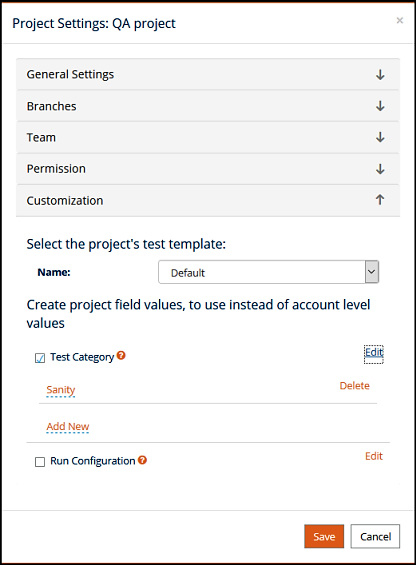
You can also set different test category values at the project level, overriding the account-level setup for a specific project. To do this, go to the Project Settings, select the Customization tab, then edit, delete or add a value.