
 Trello Website
 Trello Website
How Does Testuff Integrate with Trello?
Testuff can automatically send every reported defect to your Trello account, allowing you to run your manual tests in Testuff while continuing to use Trello for bug tracking.
How to Configure Trello with Testuff
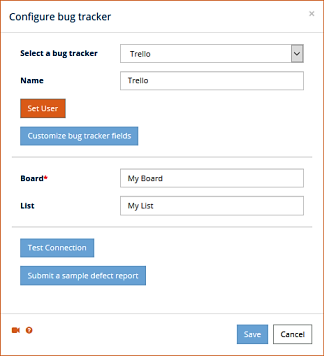
- Access Bug Trackers Settings:
- In Testuff, go to Settings and select the Bug Trackers menu option.
- Click the Add bug tracker link.
- Select and Configure Trello:
- Choose Trello from the bug trackers list.
- Set the default Board and List values for exported defects that do not have custom values.
- Go to Trello’s app key page, copy the Key and generate the Token. Paste these into the user’s details fields under Set User.
- Ensure Testuff has access to Trello to complete the integration.
- Test the Connection:
- Click the Submit a sample defect report button to verify Testuff can create bug reports in Trello.
- Click Save to register the settings.
Adding Custom Fields to Trello
- Customize Bug Tracker Fields:
- Click the Customize bug tracker fields button. The Manage bug tracker fields window will pop up.
- Click the Add custom field link and enter the Name and Code of each required customized Trello field.
Associating a Custom Trello Board and List with a Testuff Project
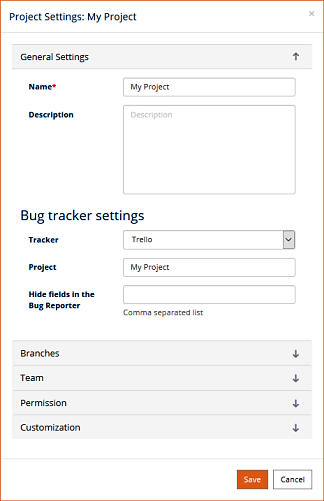
If you want to export defects from a specific Testuff project to a custom Trello board or list, follow these steps:
- Access Project Settings:
- Go to the Settings menu option at the top of the screen.
- Click on the Projects option and select a project by clicking the Edit link next to it.
- Configure Trello for the Project:
- Ensure the Tracker field is set to Trello.
- Fill in the Trello Board and/or List values for this Testuff project.
- Click Save to save the settings.
For any additional help with integrating Testuff with your Trello, please contact us.