
What is the user hierarchy in Testuff?
Testuff has six types of users, each with distinct permissions:
- Admin: Full access to all areas, menus and options. Admins manage the account settings, add / remove testers, and set permissions for all other users.
- QA Lead: Full access within assigned projects, but cannot change account settings.
- Tester (Run tests): Can only run tests assigned to them.
- Test Writer (Write tests): Can only write tests.
- Run & Write tester: Can both run tests and write tests.
- View Only: Can view all screens and data but cannot perform any actions.
Permissions are set by an Admin using the Edit User settings window.
* Note: Testers can have different roles (permissions) in the project level. Read more here.
How do I add testers to Testuff?
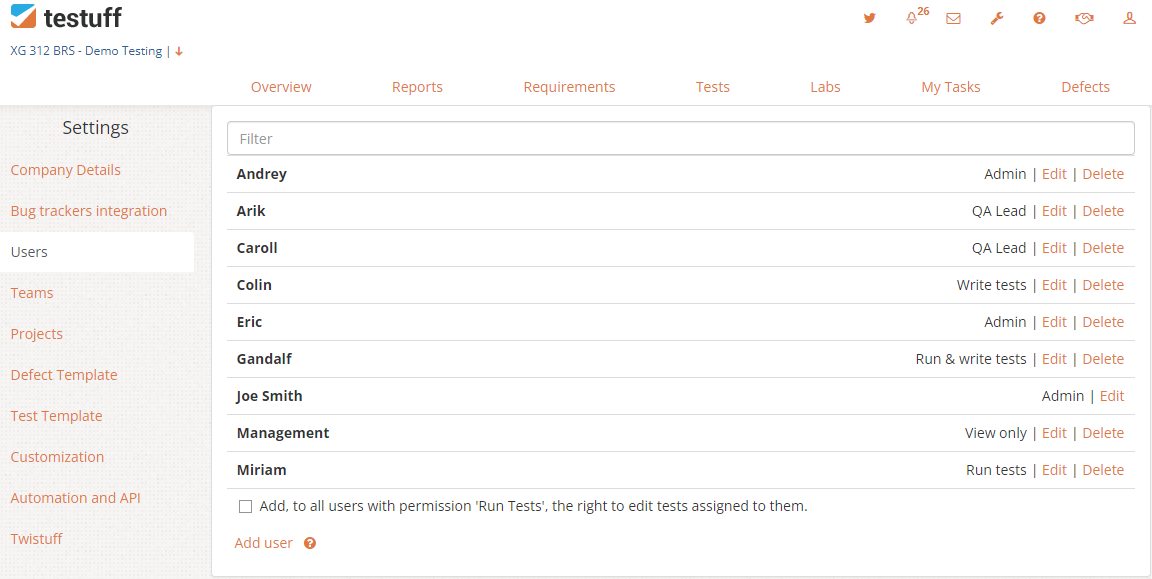
- Go to Settings and select Users menu option.
- Click on Add user. Enter the tester’s name and email address.
- An email will be sent to the tester with login information, including a generated password. It is recommended to add the `testuff.com` domain to the email whitelist to ensure future message deliveries.
- The new tester can now log in to the Testuff account.
- It is highly recommended to change the generated password via User Settings under User Details, by clicking on Change Password button.
- The new tester can also set a user image, edit their name, and set their preferred language.
How to change your personal details
Click the User Settings icon on top right of the screen.
- Password: Click the Change Password button.
- Name: Click Edit button next to the user’s name.
- Photo: Click the Change Image link.
Desktop client note: Users setting can be found under the general account setting.
How to delete testers
- Go to Settings and select Users menu option.
- Click Delete the tester you wish to delete.
- A warning message will appear. Click Delete to confirm or Cancel to undo the action.
I need more testers than my account permits. What should I do?
If you have already purchased monthly licenses, go to the settings (in Testuff) and change the number of licenses to the new number you wish to have on your account, using the change link.
If you have purchased yearly licenses please log in to your BlueSnap account at BlueSnap website and purchase additional licenses. Otherwise, contact us.