
 ActiveCollab Website
 ActiveCollab Website
How does Testuff integrate with ActiveCollab
Testuff seamlessly integrates with ActiveCollab, allowing you to send every reported defect automatically to your ActiveCollab account. You can continue running manual tests in Testuff while utilizing ActiveCollab for bug tracking.
Configuring Testuff for ActiveCollab
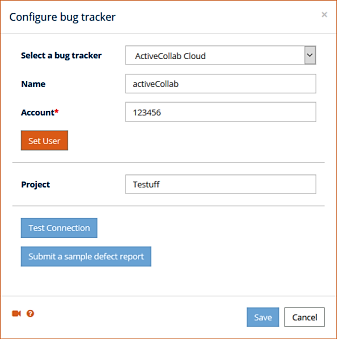
- Access Bug Tracker Settings:
- Go to Settings in Testuff.
- Select the Bug Trackers option.
- Click on the Add bug tracker link.
- Select ActiveCollab:
- From the bug tracker options, choose ActiveCollab from the dropdown list.
- Enter your ActiveCollab Account number.
- Specify the ActiveCollab project you wish to use as the default for submitting defects.
- Set User and Verify:
- Click the Set User button to input your tracker’s access details.
- Click Test connection to ensure the setup is correct.
Associating an ActiveCollab Project with a Testuff Project
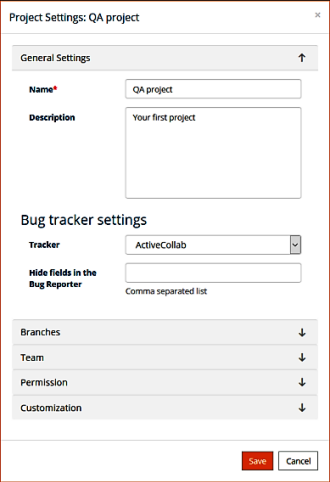
If you want to link a specific Testuff project with an ActiveCollab project, follow these steps:
- Select a Testuff Project:
- In Testuff, go to Settings and choose the Projects menu option.
- Select the project by clicking on the Edit link next to it.
- Configure the Bug Tracker:
- Under the General Settings section, within Bug Tracker settings, choose the relevant ActiveCollab project from the dropdown list.
- Save Your Settings
Note for Desktop Client Users: The steps are mostly the same, but you may need to navigate differently, such as accessing the “Manage projects” link from the home screen.
Please contact us for any help integrating Testuff with your activeCollab.